• Skip to primary navigation
  • Skip to main content
  • Skip to primary sidebar
  • Skip to footer

Ericas Ed-Ventures

Primary Education Ideas

  • Home
  • Blog
  • Classroom Decor Inspiration
  • Teacher Style
  • Shop
  • Contact

TpT Technical Difficulty Help: Printing, Opening, Missing Backgrounds, & More!

Printing and downloading issues are still a common problem.  I thought it time that I revisit this blog post that I originally posted it in the summer of 2014.
I get many questions in my TpT store, especially during decor season.  Most of these questions are related to some sort of technical difficulty.  I created this post to help answer those questions.  I hope it will give easy visual answers to your questions.   Feel free to pin this post and refer to it in the future or as a TpT seller, share with your customers.
Disclaimer: I am no computer genius.   I just know the basics and when I don’t know how to do something, I either play around until I figure it out, or I Google.
FYI – TpT has a wonderful Technical Support section that you may or may not know exists. You can click the image below to check it out!  They have just about every topic covered.

When you are leaving a Q&A, please make sure that you leave the Q&A under the exact product you have a question about.  This helps the seller know which product you are referring to and they in tern can better help you.

Sometimes a file is zipped.  It will look like the picture below.  You need to double click the icon to unzip the file.

Ashley Hughes has an extensive post on unzipping files if you are still confused.  Just click the image below.

Opening Files
You really should be opening all PDF files not created on your own computer with Adobe.  I have a Mac and it wants to default to Preview.  I love Preview, but it doesn’t always open PDF files the correct way.   You need to right click the file and then select “open with” and then select “Adobe Reader.”
If you don’t open with the latest version of Adobe Reader, you may see these:
Sometimes you may see these:

Corrupted Files – Rest assured the file is not corrupted and does not contain a virus.  It probably just was created in a computer with a newer version of Adobe or Word than you have on your computer.  Follow the steps above and it should open fine. 

What if you cannot get the PDF to Print?
Here are some things that might help you:
1.  Try to print the file as an image.  Go to options and then print as image.
2. If number one does not work, make sure everything is emptied out of your recyclable bin and delete as many extra files as possible.  Your computer might not have enough memory to send the information to your printer.
3.  Repeat step one and instead of printing the whole document, print one page at a time by page selecting.
4.  Delete the file from your computer and redownload it, then open it with the LATEST version of Adobe Reader (remember you have to restart your computer after you install it.)
5. If none of these ideas work for you, google for your specific printer and PDF printing problems.  Here are some generic tips from Adobe.
The Background Does Not Show Up
Sometimes when you open a PDF file the background does not appear.   This is ok, and it is still there.  Follow the steps above for printing as an image and it will work!
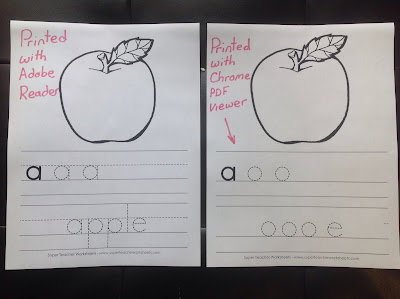
Sometimes the dotted lines on pages don’t show up.  Again, this is an easy fix if you open with Adobe and print as an image.  If you would like to read more about this, Super Teacher Worksheets has a post on it, click the image below.

Printing PDF’s at Different Sizes

Many times I get asked for mini-posters or desk-sized options for products.  There is no need for me to make these, you can just print the file at a reduced size.
You can print files at different sizes and even print two pages per printer page.  If you didn’t know this, I hope this post will help you.  Did you know that your printer settings usually want to scale the pdf down?  Check your printer settings before you print.  On my old PC I would have to print as borderless paper.  On my Mac, I have to click “scale” and then 100%.

Now, on to printing at a reduced scale on purpose! Last year, I made a ton of  word wall headers and word wall cards packets LARGE!  The reason I did this was because many teachers told me they needed to display their word walls above closets and they really wanted them big.  Also, the large size allows the file to be printed at a reduced size, if “LARGE” does not work for you.  You can always reduce a file in size to print, but often you lose a bit of the image when you enlarge.  So to err on the side of caution, I made the files LARGE.

Here is a little picture tutorial on how to reduce the file size.  I opened my Bright Table Labels file in Preview, but it should be similar to opening a file with Adobe Reader.

Here are visual tutorials on how to print more than one slide on page.
Deedee and Abby taught me this cool trick!

This “print” screen shot is from my friend, Deedee.  She has a PC and helped me out.  So, if you have a PC, it may look more like this if you want to change your print settings.

Printing Poster Sized
Traci of Dragonflies in First created a post on how to print poster sized.  The post is on Blog Hoppin’ you can click the image below to check out the post.
Printer Recommendation

I also get asked all the time about printer recommendations.  I love my printer and the ink (though expensive) lasts for over 1,000 pages!  You can always buy the off brand ink and it works just as well!  Click on the picture below to check out my printer on Amazon.com.  Update 8/8/18 – I brought this printer to school and bought the white updated version (see below) of it for home.  The new one still prints just as well and matches my office better, plus I LOVE having a color printer at school.  I had to promise not to ask for ink or repairs from my district to get them to hook the printer up for me.

Embedded Fonts in Editable PDF Files

When a font is embedded in a PDF file, there is no need to download and install the font to your computer.  It is embedded in the PDF itself using Adobe Pro.  The issue that many people have is that they don’t open the file with the latest version of Adobe Reader.  When that happens, the font defaults to Helvetica or it shows up out of alignment.

Installing Fonts

Some editable files require that you download and install a font to your computer.  Above is how I install fonts on my Mac.  After I install, I need to restart my computer.

Here is a great post from my friend, Rachel Lamb, on installing fonts.  Just click below.
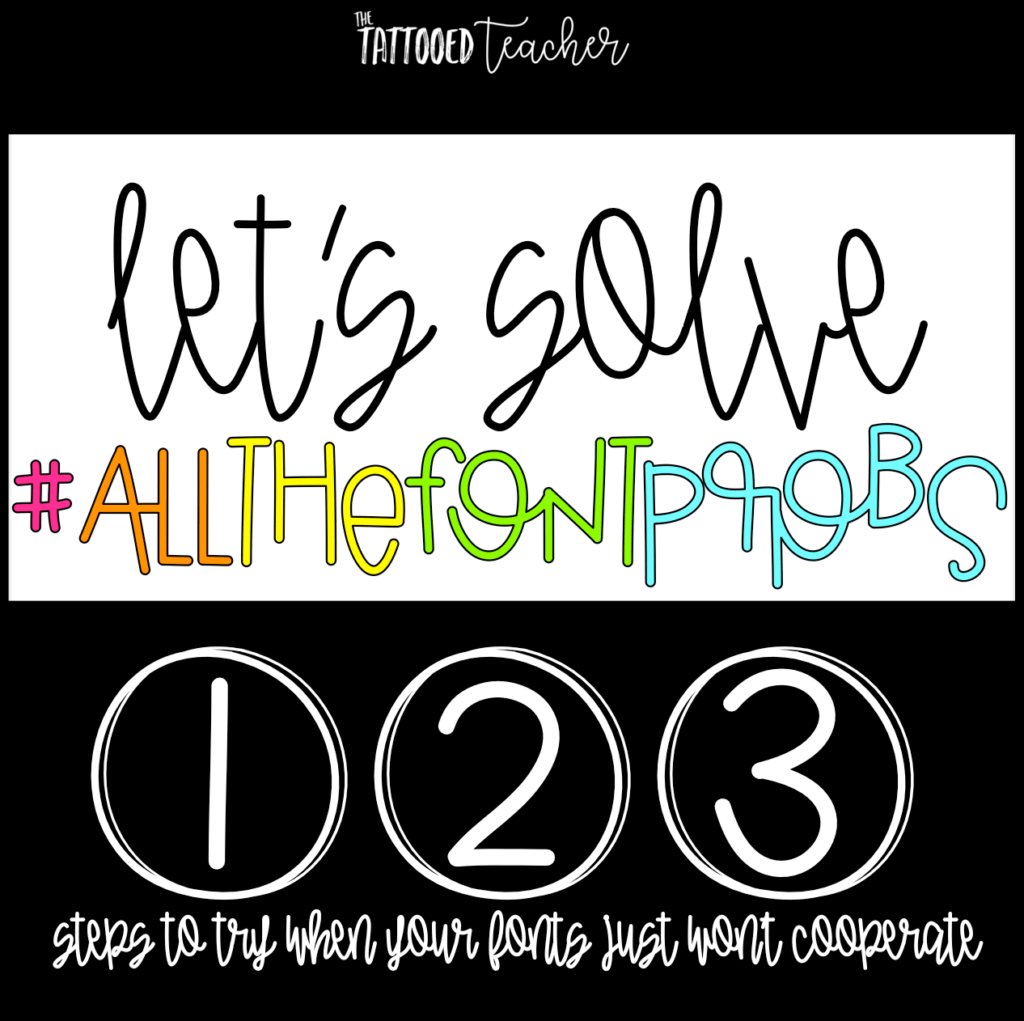
Also one of my  favorite font artists, Kimberly Geswein, has a great post on her blog about installing fonts on a Windows computer.  Click the image below to check it out.

Thank you for reading this post!
I hoped it helped you.

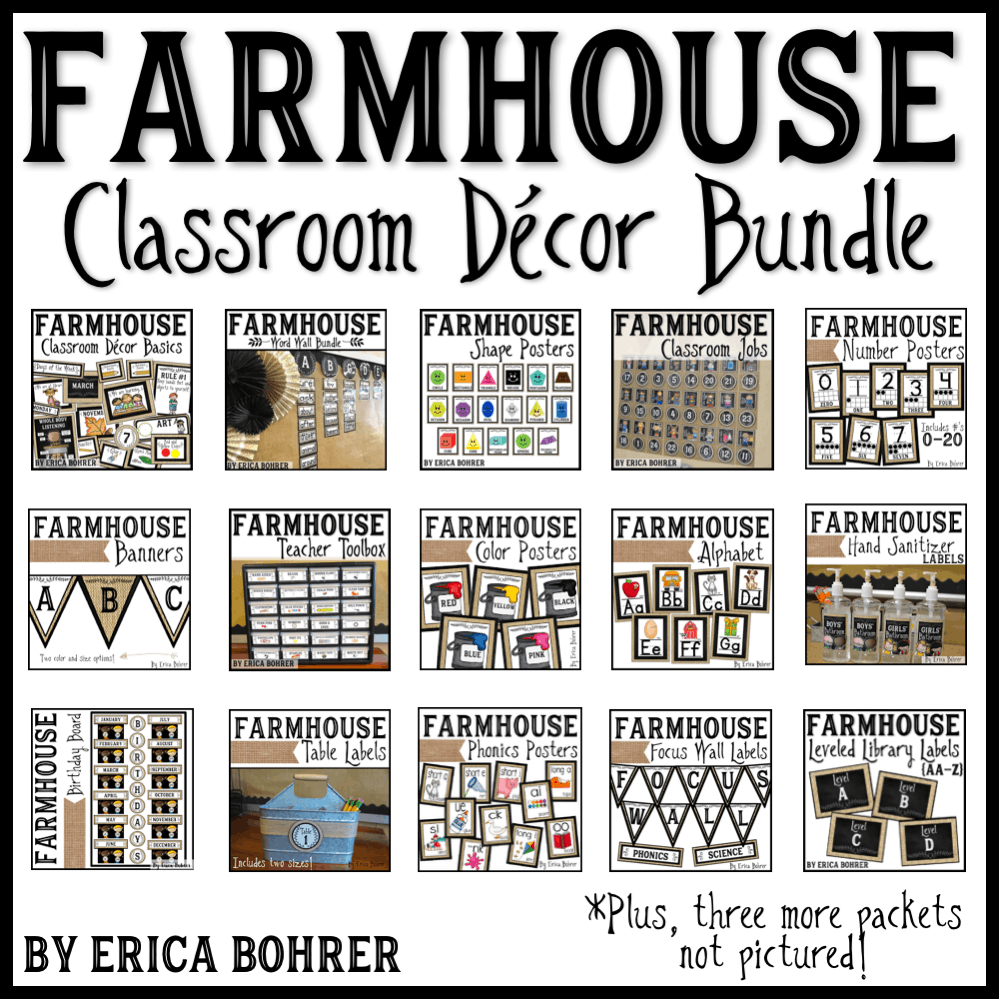
Here are some of my TpT products you may be interested in:


Filed Under: Technology, Uncategorized

Previous Post: « The Anatomy of a Book Baggie
Next Post: Back to School Student Gifts {FREEBIES} »

Reader Interactions

Comments

  1. Laura Letiecq

    August 10, 2016 at 12:24 pm

    Thanks for putting all of this in one spot. I know I have had some of these issues myself, even when printing my own things. I recently forgot to print to actual size and was wondering why my linking cubes would not fit. Thankfully it was a single page test print, not the whole set.

  2. Barbara Balius

    August 19, 2016 at 12:56 am

    Great post, Erica!

Primary Sidebar

  • Email
  • Facebook
  • Instagram
  • Pinterest
  • Twitter
  • YouTube

Search

Categories

Subscribe via Email

Featured Products

Disclosure: This website/blog contains affiliate links.  What that means is that when you click on a link to a merchant and purchase something, I get a small percentage of the sale at no additional cost to you.

Footer

Latest on Instagram

The perfect back to school get to know you activit The perfect back to school get to know you activity for your students!!

Want the link to this resource?  Comment BTS for the link.

#backtoschool #firstgradeteacher
New Shape Posters for the Classroom! These have r New Shape Posters for the Classroom!  These have real-life examples and come with three versions. 
Want the link?  Comment SHAPES below.
PS- I fixed the spelling error on Louvre but didn’t have it in me to reprint and re-video. I am back to school tired from just setting up the room with no AC. 

#classroomdecor #tptteachers
Teacher Tip: Send your students’ families a photo Teacher Tip: Send your students’ families a photo of your classroom door before the first day of school.  This will help ease some of those first day jitters about not being able to find the classroom. 
I leave the same door decor up all year long! I can’t tell you how many times students will walk into the wrong classroom and this helps my students to go in the right one every time. 
Want the links to the door decor sets?  Comment DOOR DECOR and I will DM you the links :)

#teachertips #backtoschool #classroomdecor #teacherspayteachers
📚 Back-to-school magic starts with the right read- 📚 Back-to-school magic starts with the right read-alouds!
These are my absolute favorite first-week books for building classroom community, easing those first-day jitters, and setting a positive tone from day one.
From Our Class is a Family, All Are Welcome, The Book of Rules, and so many more — these stories never miss.

Which one is a must-read in your classroom? Drop it in the comments and I will send you the links to my follow up activities!

#BackToSchool #ReadAlouds #picturebooks
These play-doh first day gifts are cute and practi These play-doh first day gifts are cute and practical!  The play-doh gives your students something fun to do while you are busy greeting students at the door.  Then once everyone is in, then you can unpack supplies as a class. 

Want the link to the FREE tags and to see what else I do on the first day?  Comment “first day” below and I will DM you the links!

#teacherhack #teacherfreebies #playdoh #teachersfollowteachers #backtoschool
How do you handle this situation? Do you put the How do you handle this situation?  Do you put the new student at the end of the alphabetical list or do you start over with a new one?
I know I am next for a new student (I have 24 kids and everyone else has 25), so I am holding off until the night before the first day.  I wish I could just wait but I like modeling where their bags and mail goes, both of which are set up using numbers.

True story: One year on the first day, I had a no show.  Then I was assigned a new student.  That student fit perfectly in the alphabetical order spot that was left.  I should have played the lottery or something.  What were the odds of that?!

#teacherproblems #teacherhumor #primaryteacher
5 things that are worth the money for your classro 5 things that are worth the money for your classroom!

1. A color printer.  We don’t have color printers at school and this has saved me from having to remember to print something at home. I brought in mine from home and then bought a new one for home. 
2. MacBookAir - This is my personal laptop.  I bring it home on weekends and holidays but for the most part I keep it at school.  I did need approval to get it on our district WiFi, which meant my phone could not also be on the WiFi.  There is a one device per teacher rule.
3. A lay-flat binder for my plan book, dismissal binder, and sub binder.  These save so much space and they are flexible. 
4. A laminator at school and a laminator at home.  It took me many years before I caved and bought another one but again, it saves me from remembering to laminate at home and I can also laminate during snack time and preps. Matte laminating is also worth the splurge.
5. My teacher toolbox! This toolbox has been with me for over 10 years, I just change out the labels to go with my decor theme.  Everything has a place and it keeps my desk organized.

Want the links?  Comment “links” below and I will DM you them. 

#classroommanagement #amazonfinds #classroom #teacherhacks #firstgradeteacher
Follow on Instagram

Copyright © 2026 · Website Design By Jumping Jax Designs